ImageTool Manager

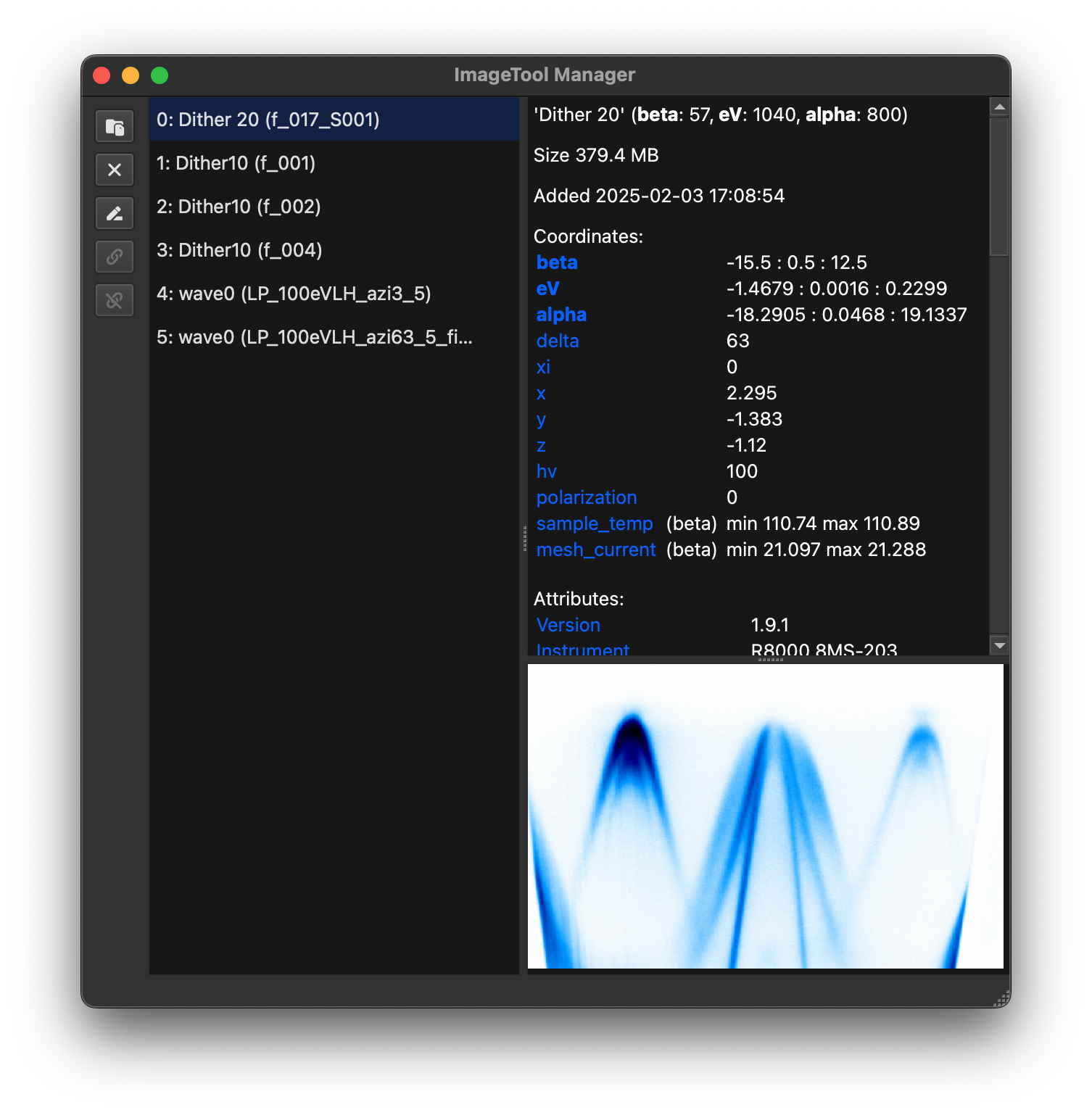
ImageToolManager is an
application for managing multiple ImageTool windows, analysis tools, and Matplotlib
figures in one place. It is designed to keep your workflow organized when you are
working with many windows at once. It also provides saving and loading sessions,
synchronization with Jupyter notebooks, and a built-in IPython console for quick
calculations and data exploration.
Why use the manager?
Launch and watch many ImageTool windows simultaneously without interrupting your notebook or script.
Keep nested ImageTool windows organized in a tree that shows their relationships and provenance.
Update tools and ImageTool windows automatically when the ImageTool or tool that created them changes.
Link multiple ImageTools, duplicate them, or update their data in place in case of real-time data acquisition.
Save multiple windows and full hierarchies to a file, share them with collaborators, and reload them later to pick up right where you left off.
Keep track of the code and steps that led to the data in each ImageTool window.
Integration with Jupyter notebooks through the
%watchmagic, which creates windows that stay synchronized with notebook variables.Create Matplotlib figures from ImageTool data without writing code using the built-in Figure Composer.
Add lab-specific analysis routines and file loaders with Python extension scripts.
Drag-and-drop files to open them quickly, or use the integrated data explorer to browse preview data.
For startup and file-opening procedures, see Loading data files into Manager.
For metadata procedures, see Applying acquisition metadata while loading.
For workspace procedures, see Saving and reopening a workspace. For derived-result procedures, see Repeating an analysis after an input change.
For extension controls and states, see Manager extensions. For extension procedures, see Manager extensions.
Tutorial
Select to start the Manager tutorial. Follow the instructions in the application. See ImageTool Manager tutorial for the launch steps.
Keyboard shortcuts
Select to open the searchable shortcut reference. It includes shortcuts for Manager, ImageTool, Data Explorer, and Figure Composer. The dialog shows the keys for your operating system.
Data and tool tree
The left pane lists ImageTool windows, analysis tools, figures, and derived ImageTool windows. Top-level ImageTools show an index and optional data name. A row produced by another row appears below its source. Selecting a row fills the right pane with its details, recorded steps, and preview.
The toolbar and row context menu provide these actions:
Show, Hide, and Remove control the selected windows. Removing a row also removes its managed window.
Rename changes displayed row names. Duplicate copies selected windows and their current state.
Arrange Selected Windows… places selected windows in a grid.
Reset Index renumbers top-level ImageTools from zero.
Link and Unlink control shared cursors, slices, bins, and plot layout proportions.
Offload to Workspace replaces in-memory data with a Dask-backed array from the saved workspace. in ImageTool reverses this operation.
Concatenate calls
xarray.concat()for selected ImageTool data and opens the result.Open in ftool… opens a weighted fit from two selected ImageTool rows. The dialog assigns one row to Data and one to Standard uncertainty; use Swap to exchange them. The data row remains the parent, and the uncertainty row remains a named
ftooldependency. The uncertainty must align with and broadcast to the data. Its values must be finite and positive where the data is finite. If it is missing or incompatible, Manager does not open an unweightedftool.New Empty Figure creates a Figure Composer window without data sources or recipe steps.
Add to Figure… creates or updates a Figure Composer figure.
Reload Data reloads file-backed data and repeats its recorded operations. The action reports missing files or inputs when replay is not possible. Stored Python remains paused until you review an unverified workspace.
Edit Note and Copy Note manage the plain-text note stored with a workspace row.
Tree badges describe live state:
A colored badge identifies linked ImageTools.
The Dask icon identifies chunked arrays.
A variable-name badge identifies a watched notebook variable.
Stale, Unavailable, and Auto describe update state for child results.
Changed and Missing describe results that depend on several live ImageTools.
Enable to show row previews while moving the pointer over the tree.
Parent and child rows
An ImageTool or analysis tool opened from another managed row appears below the row that created it. The child stores the source selection or operation needed to reproduce its data. Compatible source changes can mark the child as stale or update it automatically.
Result placement
ImageTool transformation dialogs use Result Placement:
Open Child Window preserves the source and records a child result.
Open Top-Level Window preserves the source but creates an independent top-level row.
Replace Current replaces the data in the active ImageTool.
Workspace properties
Open to inspect the active workspace. The dialog shows its path, file type, size, modification time, stored-code status, unsaved-change status, and number of open top-level windows.
Stored code
A .itws workspace can contain Python used by recorded operations, Figure Composer
recipes, saved lmfit models or results, and parameter expressions. Manager restores
data, window state, and other non-executable content before it allows stored code to
run.
When stored code is paused:
Stored content |
Effect |
|---|---|
Recorded Python operations |
Operations that require Python do not replay. |
Figure Composer Python and custom transforms |
The preview can be incomplete, and export is unavailable for that incomplete figure. |
Saved fitting code and parameter expressions |
The related restoration, replay, or fitting operation does not run. |
The Stored code field has these values:
Value |
Meaning |
|---|---|
|
The workspace has no stored Python that requires review. |
|
The workspace contains code that ERLab has not verified. |
|
The executable content matches a workspace that you previously approved and saved. |
|
The workspace is in a configured trusted folder. |
|
The executable content belongs to the current local workspace session. |
When review is available, the warning banner and Workspace Properties dialog show Review and Trust…. Approval applies to all executable content listed in the review dialog. If executable content in a saved workspace no longer matches its saved approval, ERLab pauses it again. When you add or change code in an ERLab editor, ERLab treats only that explicit edit as local work.
A standalone ImageTool does not replay stored Python from provenance. Open the original workspace in Manager to review and replay it.
Use Reviewing stored workspace code for the review procedure. The Security settings describe trusted folders and saved approvals.
Data Explorer and Console
Data Explorer
Open the explorer from or Ctrl+E.
Use it when you want to browse folders, preview metadata, queue batch loads, and then open selected files into the manager without writing code.
The explorer can also be launched standalone from Python or the command line for browsing and previewing. Opening selected files into ImageTool analysis still requires a running ImageTool manager, which is why launching it from the manager is the recommended path.
When launched from the manager, loader options are shared with the manager’s file-loading dialogs and across all Data Explorer tabs. This includes configured spreadsheet metadata.
For supported general file formats and standalone launch paths, see Data explorer.
Periodic Table
Open the periodic table from or Ctrl+Shift+P.
Use it when you want quick reference for core-level energies photoionization cross sections.
For the standalone tool page, see Periodic table.
Console
For quick calculations and data exploration without leaving the manager, the embedded IPython console is useful.
Toggle the embedded IPython console with Ctrl+J or via the View menu.
The console exposes a tools list containing a provenance-aware handle for every
ImageTool. These handles are not xarray.DataArray objects, but they support
many of the same operations and keep track of the manager history. For example:
# Access the underlying DataArray of the first window
tools[0].data

# Inspect the child rows under the first window
tools[0].children

# Create an ImageTool containing the difference of the first two windows
tools[0] - tools[1]

# Use complicated expressions
tools[0].qsel(alpha=slice(-1, 1)).qsel.average("eV")
era.transform.rotate(tools[0], 2.0, axes=("alpha", "eV"), reshape=False)

# Use a child ImageTool in a similar calculation
tools[0].children[0] - tools[1]

# xarray module calls also keep manager inputs when they receive tool handles
xr.concat([tools[0], tools[1]], dim="scan")


# Simple helper functions defined in the console can receive tool handles directly
def normalize(data):
    return data / data.max()


normalize(tools[0])

# Keep the result in the console, then open it later
diff = tools[0] - tools[1]
diff.qshow(manager=True)

# Replace data in the first window
tools[0].data = tools[0].assign_coords(time=tools[1].time)
Tip
Drag one row from the Data/Tools tree into the console to insert its
tools[...] expression where you drop it. Nested rows insert their full
.children[...] path automatically.
Run standard Python, %magic commands, or inspect objects with ? exactly as you would
in a notebook.
For notebook integration procedures, see Synchronizing a notebook variable with ImageTool.
Notebook synchronization commands
The %watch IPython magic connects DataArray variables to managed ImageTools. Its main
forms are:
%watch data1 data2       Start or refresh watches
%watch                   List watched names
%watch --restore         Reconnect saved rows by variable name
%watch -d data1          Stop watching and keep the row
%watch -x data1          Stop watching and close the row
%watch -z                Stop all watches
%watch -xz               Stop all watches and close their rows
The public watch function provides
the same operations outside IPython. Non-IPython environments use polling. The
poll_interval_s argument controls the interval. Use
maybe_push for an immediate
check and shutdown to stop watcher
threads.
Automation APIs
If you wish to integrate the manager into custom workflows, you can programmatically load data and control ImageTool windows in the manager. Use the public functions exported from erlab.interactive.imagetool.manager:
from erlab.interactive.imagetool.manager import (
    load_in_manager,
    replace_data,
    show_in_manager,
)

# Open raw files and let the manager choose the loader interactively
load_in_manager(["scan1.pxt", "scan2.pxt"])

# Open raw files with temporary loader extensions
load_in_manager(
    ["scan1.pxt", "scan2.pxt"],
    "merlin",
    loader_extensions={"coordinate_attrs": ("scan_number",)},
)

# Open two ImageTools and link their cursors
show_in_manager([data_a, data_b], link=True, target=1)

# Replace the dataset at index 3 with a new result
replace_data(3, new_data, target=1)
Additional functions and objects such as managers, replace_data, watch, and manager_selection_info give you finer control when building custom acquisition pipelines or editor integrations.
These functions use ZeroMQ to communicate with the GUI. The manager uses a user-specific live registry for discovery. Normal routing is for Python processes in the same user session as the manager. See the API documentation for details.
Manager selection
Manager indexes are 0-based. The manager registry lists live Manager windows and their
indexes.
ERLabPy selects the only live Manager automatically. It also uses the default Manager that the current Python process selected. An operation raises an error when several Manager windows are live and neither rule selects one.
The public interfaces provide these selection forms:
A registry handle provides
show,load,replace,fetch, andwatchmethods for one index. Itsusemethod sets the process default.Manager functions such as
show_in_manageraccept atargetindex.xarray.DataArray.qshow()accepts a Manager index inmanager.%itooland%watchaccept a Manager index with-m.%manager list,%manager use INDEX,%manager current, and%manager clearinspect or change the process default.
Use Sending data to a specific Manager window for one task sequence.
For standalone installation procedures, see Installing the standalone Manager.