Plotting
ERLabPy provides a number of plotting functions to help visualize data and create publication quality figures.
Importing
The key module to plotting is erlab.plotting, which contains various plotting functions. To import it, use the following code:
import matplotlib.pyplot as plt
import erlab.plotting as eplt
First, let us generate some example data from a simple tight binding model of graphene. A rigid shift of 200 meV has been applied so that the Dirac cone is visible.
from erlab.io.exampledata import generate_data

dat = generate_data(bandshift=-0.2, seed=1).T
dat
<xarray.DataArray (eV: 300, ky: 250, kx: 250)> Size: 150MB
3.17 3.71 2.969 4.094 4.071 2.702 ... 0.02378 0.1156 0.1156 0.0235 0.0007165
Coordinates:
  * kx       (kx) float64 2kB -0.89 -0.8829 -0.8757 ... 0.8757 0.8829 0.89
  * ky       (ky) float64 2kB -0.89 -0.8829 -0.8757 ... 0.8757 0.8829 0.89
  * eV       (eV) float64 2kB -0.45 -0.4482 -0.4464 ... 0.08639 0.08819 0.09
We can see that the generated data is a three-dimensional xarray.DataArray. Now, let’s extract a cut along \(k_y = 0.3\).
cut = dat.qsel(ky=0.3)
cut
<xarray.DataArray (eV: 300, kx: 250)> Size: 600kB
3.52 2.469 3.126 3.968 2.827 2.746 ... 0.1384 0.05118 0.09941 0.1574 0.5755
Coordinates:
  * eV       (eV) float64 2kB -0.45 -0.4482 -0.4464 ... 0.08639 0.08819 0.09
  * kx       (kx) float64 2kB -0.89 -0.8829 -0.8757 ... 0.8757 0.8829 0.89
ky float64 8B 0.2967Plotting 2D data
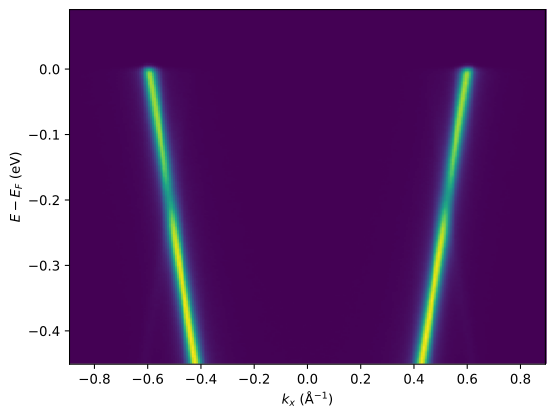
The fastest way to plot a 2D array like this is to use plot_array. Each axis is automatically labeled.
eplt.plot_array(cut)
<matplotlib.image.AxesImage at 0x79dab2cef440>
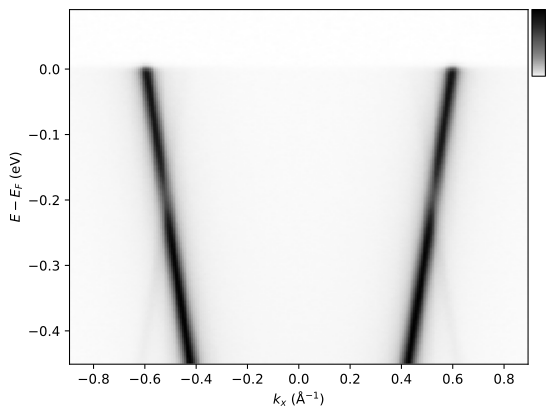
plot_array takes many arguments that can customize the look of your plot. The following is an example of some of the functionality provided. For all arguments, see the API reference.
eplt.plot_array(
    cut, cmap="Greys", gamma=0.5, colorbar=True, colorbar_kw=dict(width=10, ticks=[])
)
<matplotlib.image.AxesImage at 0x79dab2d462d0>
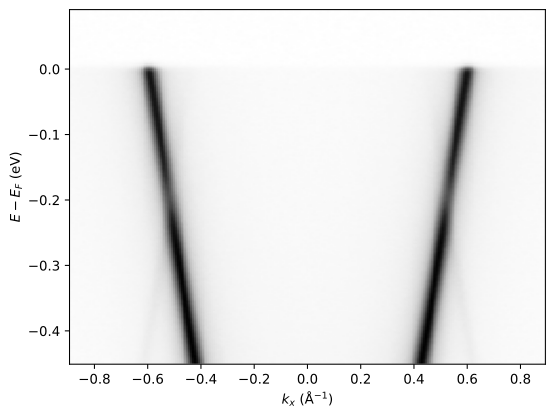
plot_array can also be accessed (for 2D data) through xarray.DataArray.qplot().
cut.qplot(cmap="Greys", gamma=0.5)
<matplotlib.image.AxesImage at 0x79dab2c3ed80>
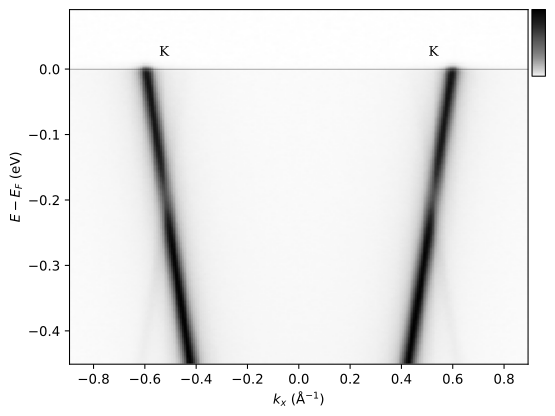
Next, let’s add some annotations! The following code adds a line indicating the Fermi level, labels high symmetry points, and adds a colorbar. Here, unlike the previous example, the colorbar was added after plotting. Like this, adding elements separately instead of using keyword arguments can make the code more readable in complex plots.
eplt.plot_array(cut, cmap="Greys", gamma=0.5)

eplt.fermiline()
eplt.mark_points([-0.525, 0.525], ["K", "K"], fontsize=10, pad=(0, 10))
eplt.nice_colorbar(width=10, ticks=[])
<matplotlib.colorbar.Colorbar at 0x79dab2de84d0>
Slices
What if we want to plot multiple slices at once? We should create subplots to place the
slices. plt.subplots is very useful in managing multiple axes and figures. If you
are unfamiliar with the syntax, visit the relevant matplotlib
documentation.
Suppose we want to plot constant energy surfaces at specific binding energies, say, at [-0.4, -0.2, 0.0]. We could create three subplots and iterate over the axes.
energies = [-0.4, -0.2, 0.0]

fig, axs = plt.subplots(1, 3, layout="compressed", sharey=True)
for energy, ax in zip(energies, axs):
    const_energy_surface = dat.qsel(eV=energy)
    eplt.plot_array(const_energy_surface, ax=ax, gamma=0.5, aspect="equal")
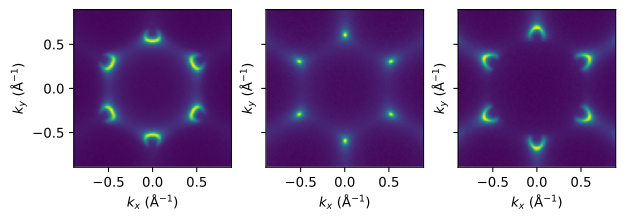
Here, we plotted each constant energy surface with plot_array.
To remove the duplicated y axis labels and add some annotations, we can use clean_labels and label_subplot_properties:
fig, axs = plt.subplots(1, 3, layout="compressed", sharey=True)
for energy, ax in zip(energies, axs):
    const_energy_surface = dat.qsel(eV=energy)
    eplt.plot_array(const_energy_surface, ax=ax, gamma=0.5, aspect="equal")

eplt.clean_labels(axs)  # removes shared y labels
eplt.label_subplot_properties(axs, values={"Eb": energies})  # annotates energy
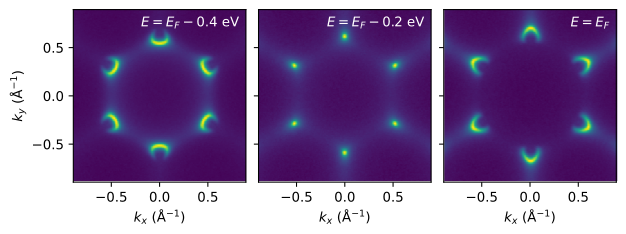
Not bad. However, when it gets to multiple slices along multiple datasets, it gets cumbersome.
Luckily, ERLabPy provides a function that automates the subplot creation, slicing, and annotation for you: plot_slices, which reduces the same code to a one-liner.
fig, axs = eplt.plot_slices([dat], eV=[-0.4, -0.2, 0.0], gamma=0.5, axis="image")
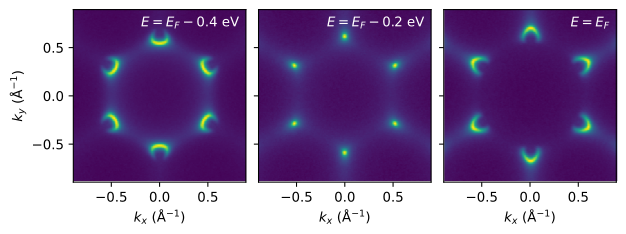
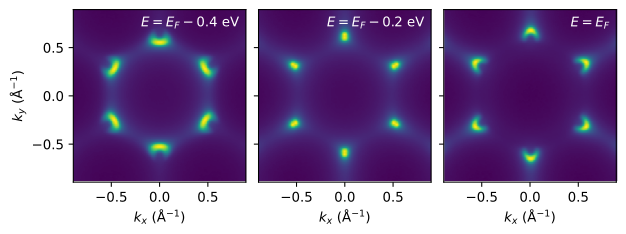
We can also plot the data integrated over an energy window, in this case with a width of 200 meV by adding the eV_width argument:
fig, axs = eplt.plot_slices(
    [dat], eV=[-0.4, -0.2, 0.0], eV_width=0.2, gamma=0.5, axis="image"
)
Cuts along constant \(k_y\) can be plotted analogously.
fig, axs = eplt.plot_slices([dat], ky=[0.0, 0.1, 0.3], gamma=0.5, figsize=(6, 2))
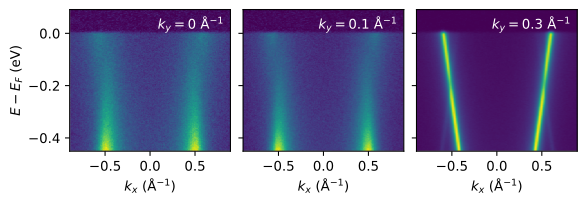
Here, we notice that the first two plots slices through regions with less spectral weight, so the color across the three subplots are not on the same scale. This may be misleading in some occasions where intensity across different slices are important. Luckily, we have a function that can unify the color limits across multiple axes.
Note
The same effect can be achieved by passing on same_limits=True to plot_slices.
fig, axs = eplt.plot_slices([dat], ky=[0.0, 0.1, 0.3], gamma=0.5, figsize=(6, 2))
eplt.unify_clim(axs)
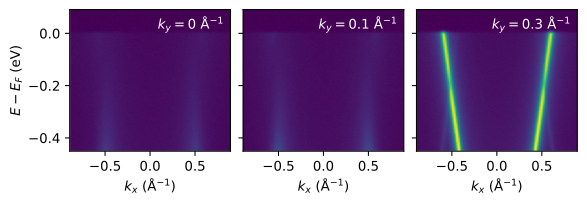
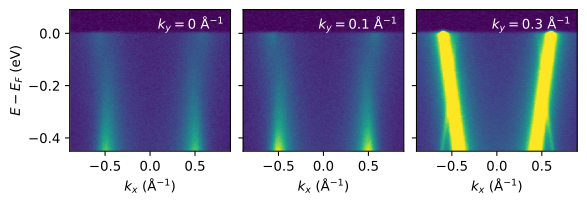
We can also choose a reference axis to get the color limits from.
fig, axs = eplt.plot_slices([dat], ky=[0.0, 0.1, 0.3], gamma=0.5, figsize=(6, 2))
eplt.unify_clim(axs, target=axs.flat[1])
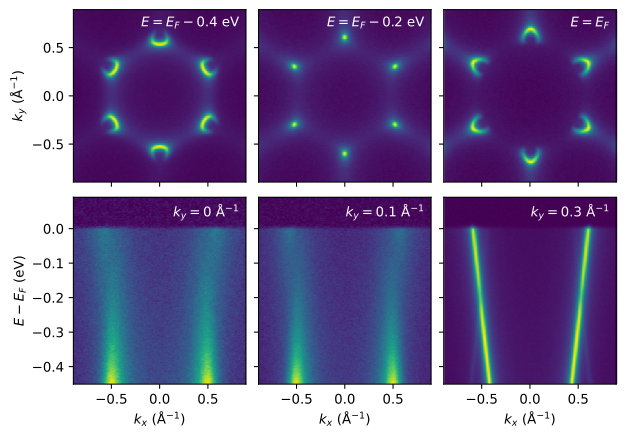
What if we want to plot constant energy surfaces and cuts in the same figure? We can create the subplots first and then utilize the axes argument of plot_slices.
fig, axs = plt.subplots(2, 3, layout="compressed", sharex=True, sharey="row")
eplt.plot_slices([dat], eV=[-0.4, -0.2, 0.0], gamma=0.5, axes=axs[0, :], axis="image")
eplt.plot_slices([dat], ky=[0.0, 0.1, 0.3], gamma=0.5, axes=axs[1, :])
eplt.clean_labels(axs)
2D colormaps
2D colormaps are a method to visualize two data with a single image by mapping one of the data to the lightness of the color and the other to the hue. This is useful when visualizing dichroic or spin-resolved ARPES data[2].
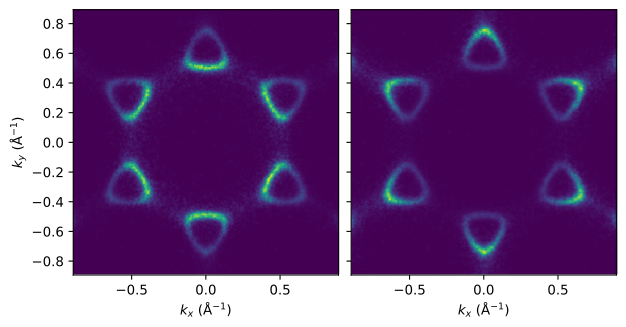
Let us begin with the simulated constant energy contours of Graphene, 0.3 eV below and above the Fermi level.
dat0, dat1 = generate_data(
    shape=(250, 250, 2), Erange=(-0.3, 0.3), temp=0.0, seed=1, count=1e6
).T

_, axs = eplt.plot_slices(
    [dat0, dat1],
    order="F",
    subplot_kw={"layout": "compressed", "sharey": "row"},
    axis="scaled",
    label=True,
)
# eplt.label_subplot_properties(axs, values=dict(Eb=[-0.3, 0.3]))
Suppose we want to visualize the sum and the normalized difference between the two. The simplest way is to plot them side by side.
dat_sum = dat0 + dat1
dat_ndiff = (dat0 - dat1) / dat_sum

eplt.plot_slices(
    [dat_sum, dat_ndiff],
    order="F",
    subplot_kw={"layout": "compressed", "sharey": "row"},
    cmap=["viridis", "bwr"],
    axis="scaled",
)
eplt.proportional_colorbar()
<matplotlib.colorbar.Colorbar at 0x79dab04f1fd0>
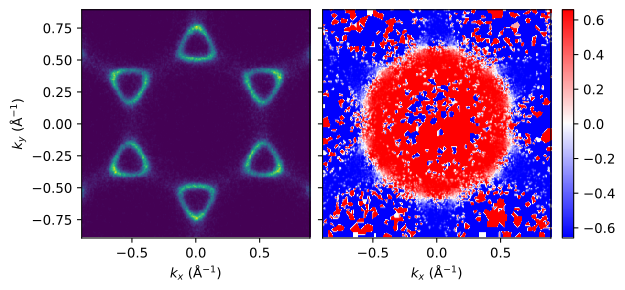
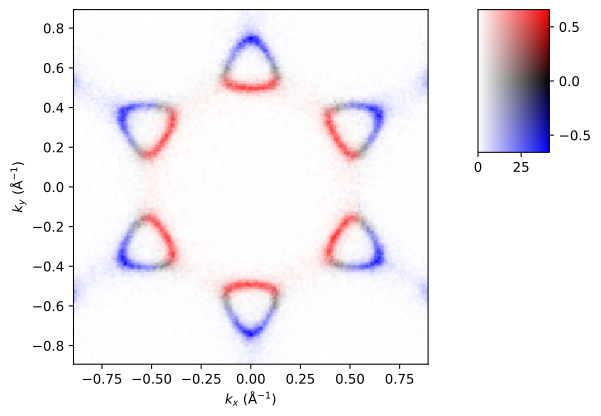
The difference array is noisy for small values of the sum. We can plot using a 2D
colomap, where dat_ndiff is mapped to the color along the colormap and dat_sum is
mapped to the lightness of the colormap.
eplt.plot_array_2d(dat_sum, dat_ndiff)
(<matplotlib.image.AxesImage at 0x79dab0330f50>,
 <matplotlib.colorbar.Colorbar at 0x79dab014c6b0>)
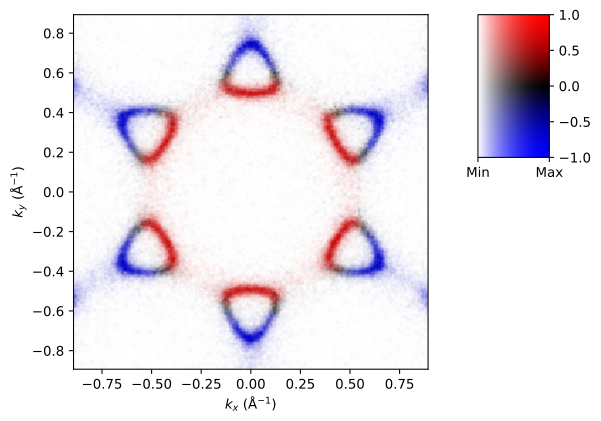
The color normalization for each axis can be set independently with lnorm and cnorm.
The appearance of the colorbar axes can be customized with the returned Colorbar
object.
_, cb = eplt.plot_array_2d(
    dat_sum,
    dat_ndiff,
    lnorm=eplt.InversePowerNorm(0.5),
    cnorm=eplt.CenteredInversePowerNorm(0.7, vcenter=0.0, halfrange=1.0),
)
cb.ax.set_xticks(cb.ax.get_xlim())
cb.ax.set_xticklabels(["Min", "Max"])
[Text(0.0, 0, 'Min'), Text(41.33577630506462, 0, 'Max')]
Styling figures
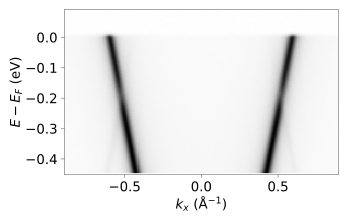
You can control the look and feel of matplotlib figures with style sheets and rcParams. In addition to the options provided by matplotlib, ERLabPy provides some style sheets that are listed below. Note that style sheets that change the default font requires the font to be installed on the system. To see how each one looks, try running the code provided by matplotlib.
Style Name |
Description |
|---|---|
khan |
Personal preferences of the package author. |
fira |
Changes the default font to Fira Sans. |
firalight |
Changes the default font to Fira Sans Light. |
times |
Changes the default font to Times New Roman. |
nature |
Changes the default font to Arial, and tweaks some aspects such as padding and default figure size. |
with plt.style.context(["nature"]):
    eplt.plot_array(cut, cmap="Greys", gamma=0.5)
Tips
In the python ecosystem, there are some libraries that provide great colormaps, such as cmasher, cmocean, colorcet, and cmcrameri.
Although matplotlib is a powerful library, it is heavy and slow, and better suited for static plots. For interactive plots, libraries such as Plotly or Bokeh are popular.
The hvplot library is a high-level plotting library that provides a simple interface to Bokeh, Plotly, and Matplotlib. It is particularly useful for interactive plots and can be used with xarray objects. Here are some examples that uses the Bokeh backend:
import hvplot.xarray

cut.hvplot(x="kx", y="eV", cmap="Greys", aspect=1.5)
dat.hvplot(x="kx", y="ky", cmap="Greys", aspect="equal", widget_location="bottom")
Note
If you are viewing this documentation online, the slider above will not work. To see the interactive plot, you can run the notebook locally after installing hvplot.
For more information, see the hvplot documentation.