ImageTool
Inspired by Image Tool for Igor Pro, developed by the Advanced Light Source at Lawrence Berkeley National Laboratory, ImageTool delivers the same efficient workflow, now enhanced by xarray and Python.
Key capabilities
Responsive slicing of multidimensional (up to 4D)
DataArrayobjects, including Dask-backed data.Unlimited number of cursors with independent binning and code export for each line cut.
Rich colormap controls with power law scaling, symmetric scaling about a center, and live color range adjustment.
Built-in menus for selection, rotation, symmetrization, averaging, interpolation, cropping, coordinate reassignment, Fermi edge correction, and other common operations.
Tight integration with tools such as ktool, dtool, and other tools listed in Other interactive tools, all accessible from ImageTool’s menus and context menus.
Seamless integration with ImageTool manager when you need to organize top-level ImageTool rows, tools opened from those ImageTools, ImageTool windows made by those tools, shared workspaces, or synchronized Jupyter notebooks.
Launching ImageTool
ImageTool expects image-like data—usually a DataArray—with
2–4 dimensions. ImageTool tries to handle incompatible input dimensions by adding a new
dimension for 1D data and squeezing out dimensions of size 1 for 5D+ data. Non-uniform
coordinates gain parallel _idx indices so you can still slice by position. Supported
inputs include numpy arrays, Dataset, or entire
DataTree objects.
Entry points
Use the
xarray.DataArray.qshow()accessor on your data:data.qshow(link=True)
Call
erlab.interactive.imagetool.itool()directly:import erlab.interactive as eri eri.itool(data, cmap="cividis")
Passing a list to
itoolspawns multiple windows; setlink=Trueto synchronize their cursor positions and bins. Passing a Dataset or DataTree with multiple valid variables first asks which variables to open.Launch ImageTool from IPython or a notebook using the
%itoolline magic. Load the extension first:%load_ext erlab.interactive
Then run:
%itool data
where
datais a variable in the current namespace. You can pass additional flags, such as-mor--managerwhich sends the window straight to the manager. Type%itool --helpor%itool?to list all supported flags.Need to open a file quickly? Use File → Open… inside ImageTool. The dialog lists every available loader, including those from data loader plugins, so you can switch between formats without writing code.
If you are using VS Code, you can open a DataArray in ImageTool directly from the GUI with the
erlabextension ( marketplace | open-vsx ).
Notebook auto-loading
Add erlab.interactive to your IPython configuration so %itool is ready whenever a notebook starts.
Tip
If you use VS Code with the Jupyter extension, add this to your workspace or user settings.json:
"jupyter.runStartupCommands": [
    "%load_ext erlab.interactive"
]
To integrate ImageTool windows with notebook variables—including bi-directional
updates—switch to the ImageTool manager and use the %watch
magic described in Notebook integration. When an ImageTool is open in the
manager, ImageTool windows opened from it or from its tools can stay in the same tree
branch as the row that made them, as described in
Nested windows.
Round-trip
Start from Python with xarray.DataArray.qshow(),
erlab.interactive.imagetool.itool(), or %itool, then use Copy selection code or dialog Copy Code to move the chosen selection or
transform back into a notebook. If edits should update a live notebook variable instead
of the clipboard, move the window to the manager and use
%watch.
For rows in the manager, the side panel can also show the data in the ImageTool that started the workflow, the steps that created the selected row, and code that repeats those steps; see Operation history. The full GUI/API mapping lives in Operation map.
Interface tour
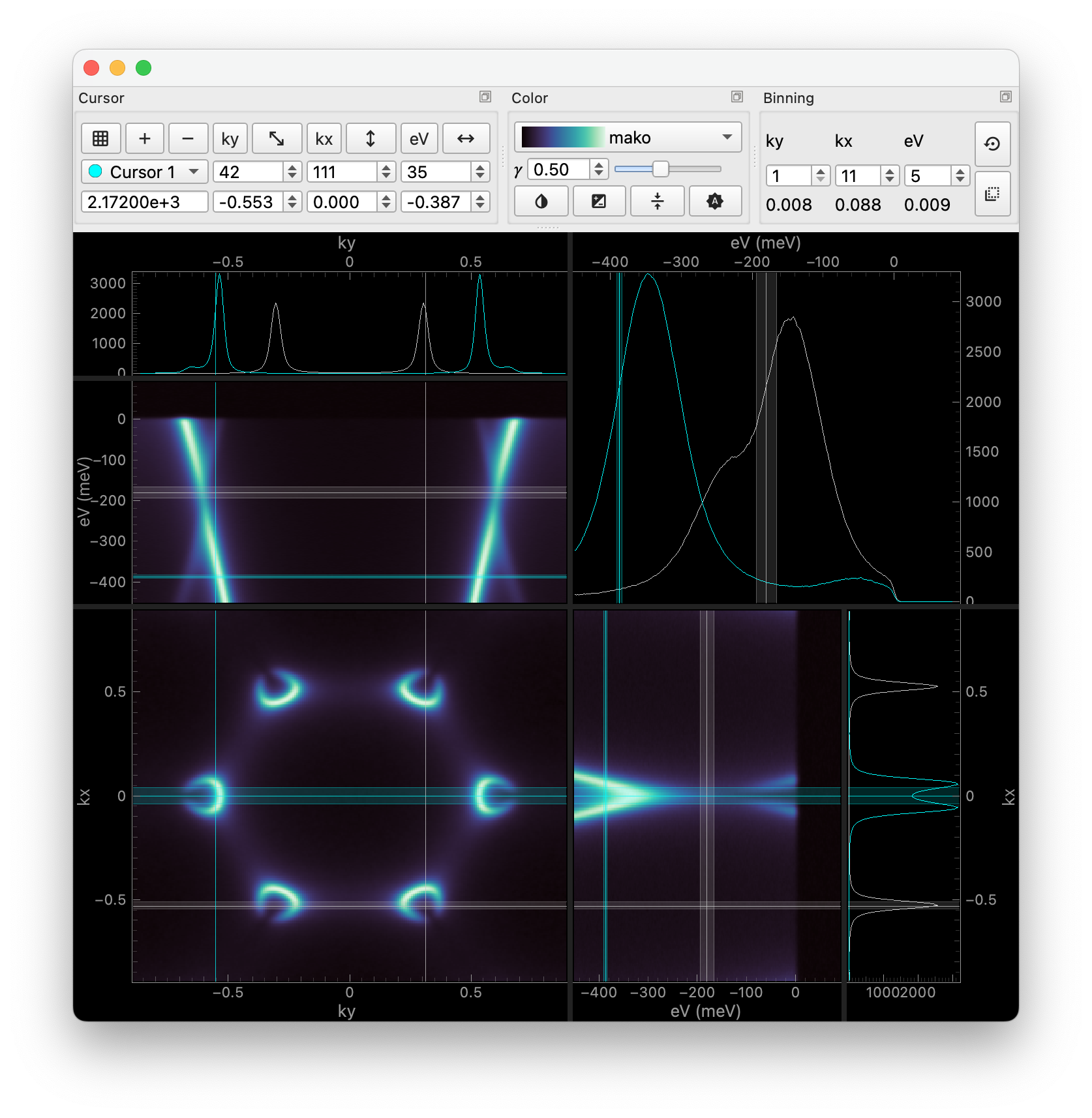
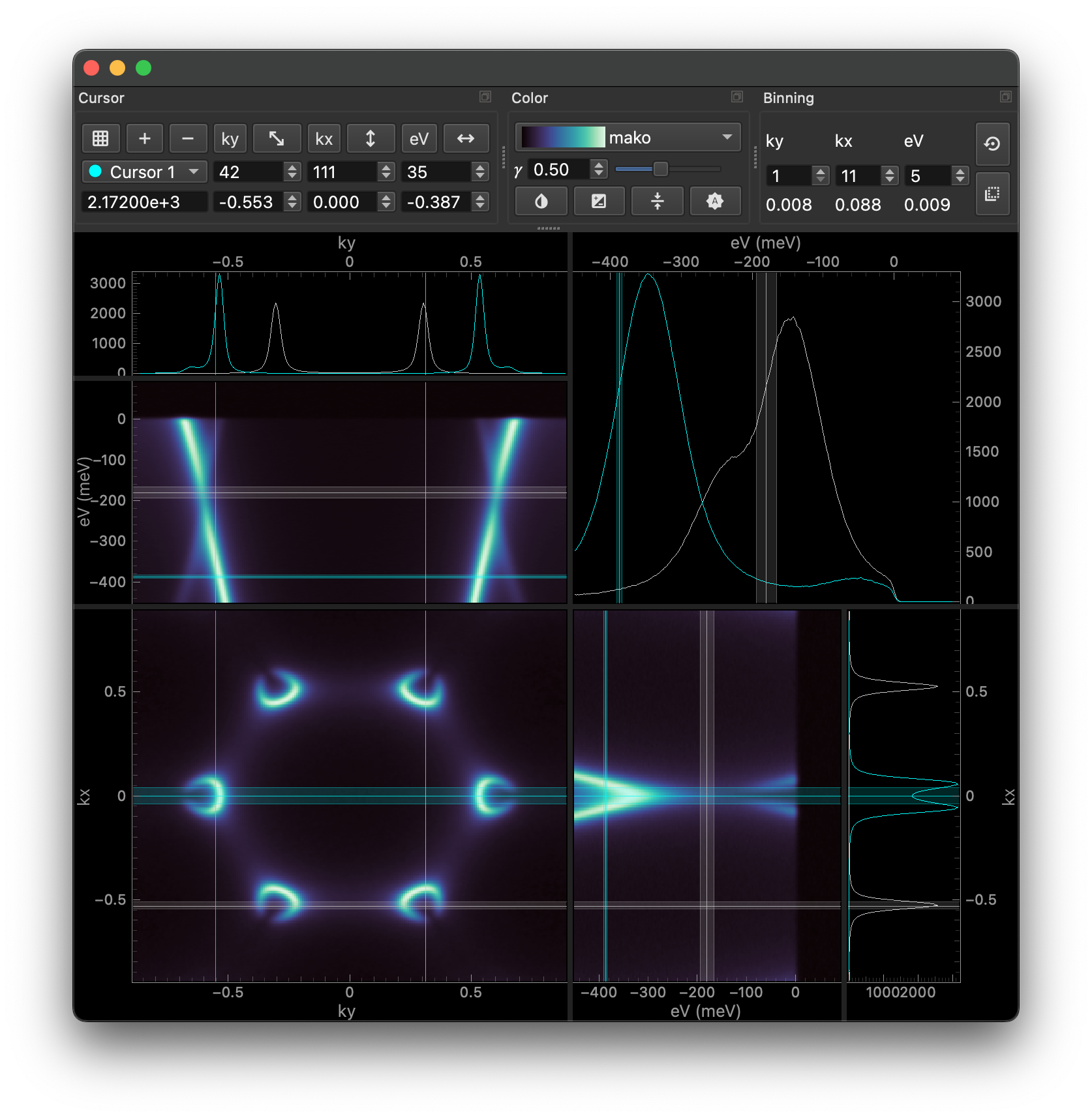
Every ImageTool window is built from an ImageSlicerArea plus dockable control panels:
Main image and cross-sections – The central plot renders the current 2D slice. Orthogonal slices and cursor readouts update in real time as you move the cursors.
Cursor panel – Add, remove, and modify cursors here. The coordinates of the active cursor are shown in editable text boxes.
Color panel – Manipulate colormap normalization and appearance.
Binning panel – Set bin widths per dimension and reset them with . Changes to the bin widths you make while is toggled are applied to all cursors.
Working with dimensions and coordinates
The order of dimensions can be swapped using the arrow buttons in the cursor panel. The direction of the arrow intuitively indicates which slice will be swapped with the main view.
Non-uniform coordinates are converted with a
_idxsuffix for plotting. Their true values are displayed in the cursor readouts.Use Edit → Edit Coordinates to open the Coordinate Editor dialog. This is a GUI for
xarray.DataArray.assign_coords()that lets you specify start/end values, edit per-point values, scale and offset a numeric scalar or 1D coordinate withnew = scale * old + offset, add a scalar coordinate, or add a 1D associated coordinate along an existing dimension.Use Edit → Edit Attributes to open the Attribute Editor dialog. This is a GUI for
xarray.DataArray.assign_attrs()that lets you change existing attributes or add new typed attributes while leaving untouched attributes in place. Choose String, Int, Float, Bool, or Python literal when entering values.Use Edit → Rename… to open the Rename Coordinates and Dimensions dialog. This is a GUI for
xarray.DataArray.rename()that lets you rename coordinates and dimensions.Use Edit → Swap Dimensions to open the Swap Dimensions dialog. This is an interface for
xarray.DataArray.swap_dims().Dask-backed arrays are fully supported. The dedicated Dask menu exposes actions to compute the array into memory, rechunk automatically, or choose custom chunk shapes within ImageTool.
Overlay plots of numeric non-dimensional coordinates (e.g., temperature) on profile plots from View → Plot Associated Coordinates. Multi-dimensional coordinates are sliced with the active cursor and averaged over binned hidden dimensions. Right-click a profile plot to open associated coordinates in a new ImageTool window.
Use View → Set Cursor Colors by Coordinate… to color cursors by a dimension coordinate or numeric associated coordinate value at each cursor position.
Slicing, binning, and linking
Drag with the left mouse button to pan and with the right mouse button (or the wheel) to zoom. Scroll on individual axes to zoom along a single dimension.
To change the slicing position, drag on a cursor line to move it, or drag on the plots while holding Ctrl. You can also use the keyboard shortcuts listed in the View → Cursor Control submenu which allow precise nudging of the active cursor with arrow keys.
When binning is enabled, the data shown are an average over the specified bin widths, which are indicated by shaded regions near the cursor lines.
Hint
To reduce the underlying data instead of displaying binned slices, use the Edit → Aggregate… dialog or the Coarsen dialog for more options.
When comparing data in several ImageTool windows, you can link them either at creation (
eri.itool([data1, data2], link=True)) or inside the manager. Linked windows maintain synchronized slicing positions, bin widths, and cursor counts.
Color and normalization
Toggle to lock the color range to the global data min/max and display a colorbar alongside the image. Drag on the colorbar to update limits interactively or right-click to type exact bounds.
applies gamma scaling relative to the midpoint, which is handy for centered intensity scales such as spin-polarized or dichroic data.
Use to flip between normalization behaviors of
matplotlib.colors.PowerNormanderlab.plotting.colors.InversePowerNorm.By default, only a subset of Matplotlib colormaps is loaded. You can load the whole catalog by right-clicking on the colormap drop-down and selecting Load All Colormaps.
Editing and filtering data
Editing dialogs live under the Edit and View menus. Most transforms are destructive, but they let you keep the data as it was before the edit by opening the result separately. When the current ImageTool is open in the manager, use Result Placement to choose whether the new data opens as a child row of the current ImageTool, opens as a separate top-level window, or replaces the current ImageTool; see Choosing where new data opens. When Copy Code is available, the generated snippet is placed on your clipboard, ready to paste into a script or notebook for reproducibility.
Edit → Rotate opens the Rotate dialog. Enter the angle, center, interpolation order, and whether to reshape the image. If a rotation guideline is active, the dialog pre-fills the angle and center from the guideline.
Edit → Select Data… opens the Select Data dialog. Use it to build
xarray.DataArray.qsel(),xarray.DataArray.sel(), andxarray.DataArray.isel()selections from a table of dimensions. Each row can select a scalar point or a contiguous range.Edit → Aggregate… opens the Aggregate Over Dimensions dialog. Select any set of dimensions and reduce them with mean, minimum, maximum, or sum via
xarray.DataArray.qsel.mean(),xarray.DataArray.qsel.min(),xarray.DataArray.qsel.max(), orxarray.DataArray.qsel.sum().Edit → Interpolate… opens the Interpolate dialog. Choose one dimension, enter the target coordinate values, and interpolate with
xarray.DataArray.interp()usinglinearornearest.Edit → Leading Edge… opens the Leading Edge dialog. Choose the dimension to extract the leading edge from, set the fraction of the curve maximum, and choose whether the edge is searched toward larger or smaller coordinate values with
erlab.analysis.interpolate.leading_edge().Edit → Coarsen opens the Coarsen dialog. Select window sizes for one or more dimensions, choose the
boundary,side, and coordinate reduction function forxarray.DataArray.coarsen(), then apply a reducer such asmean,sum, ormedian.Edit → Thin opens the Thin Data dialog which uses
xarray.DataArray.thin().Edit → Symmetrize → Mirror… opens the Symmetrize dialog. Mirror a selected dimension about a specified center with additive or subtractive symmetry,
validorfulloverlap, and one-sided or two-sided output.Edit → Symmetrize → Rotational… opens the rotational symmetrization dialog. If a rotation guideline is visible, the dialog pre-fills the center and fold count based on the guideline.
Edit → Crop opens the Crop Between Cursors dialog, while Edit → Crop to View opens the Crop to View dialog.
Edit → Correct With Edge… opens the Edge Correction dialog. If your data exposes an
eVaxis, ImageTool can import a previously fitted edge viaxarray_lmfit.load_fit()and shift the spectrum accordingly.View → Normalize opens the Normalize dialog, which applies a reversible filter that supports area normalization, min-max scaling, and baseline subtraction.
View → Gaussian Filter opens the Gaussian Filter dialog, which applies a reversible coordinate-aware Gaussian broadening filter along selected dimensions.
Use Edit → Undo and Edit → Redo to walk changes back, and View → Reset to remove any currently applied filter. Reopening the dialog for the active filter starts from the current filter settings and replaces that active filter when accepted.
Regions of Interest (ROIs)
ROIs let you focus on a sub-region of the data. They can be created and manipulated directly on the image plot.
Only polygonal ROIs with arbitrary vertex counts are supported at this time.
Create and manipulate
Right-click on an image plot and choose Add Polygon ROI. A two-point line appears near the active cursor so you can immediately drag it into place.
Drag any handle to move a vertex. Click on a segment to insert a new vertex.
Right-click on a ROI and pick Edit ROI… to open a tabular editor.
The coordinate table lists every vertex of the ROI.
Check the Closed option to convert an open polyline into a filled polygon.
Edits are logged, so you can undo accidental drags with Ctrl+Z.
ROI-driven analysis
Two additional context-menu actions appear upon right-clicking on a ROI:
Slice Along ROI Path interpolates the data with
erlab.analysis.interpolate.slice_along_path().Choose a step size and a name for the new path dimension, then decide where the result should go. In the manager, this uses the same Result Placement choices as other transforms.
Mask Data with ROI calls
erlab.analysis.mask.mask_with_polygon()to mask the data with the ROI.You can choose whether to invert the mask and whether to trim the resulting data.
Note that both procedures work on the entire data volume, not just the visible slice.
Exporting and settings
File → Save As… exports the current data to NetCDF, HDF5, or Igor Binary Wave (
.ibw).File → Move to Manager hands the window off to the ImageTool manager.
File → Settings opens the shared settings dialog described in Configuration.
Keyboard shortcuts
Most actions advertise their shortcut directly in the menu bar. The table below highlights common gestures. Replace Ctrl with ⌘ and Alt with ⌥ on macOS.
Shortcut |
Description |
|---|---|
LMB Drag |
Pan |
RMB Drag |
Zoom and scale |
Ctrl+LMB Drag |
Move active cursor |
Ctrl+Alt+LMB Drag |
Move all cursors simultaneously |
Alt while dragging a cursor line |
Move all cursor lines along |
Rule of thumb: hold Alt to apply actions to all cursors. Shortcuts for ‘shifting’ a cursor involves the Shift key.